KeyPoint Credit Union is excited to offer Remote Deposit Capture – Desktop (RDCD)—a fast, secure, and convenient way for businesses to deposit checks using a desktop scanner. Instead of driving to a branch, scan and transmit checks directly from your office through our secure online banking platform.

Why Your Business Needs RDCD

  • 24/7 Check Scanning: Deposit checks anytime using your own desktop scanner.
  • Fast & Secure Online Transmission: Send check images electronically through our secure banking platform.
  • Custom User Permissions: Assign specific access and functionality for each team member.
  • High Volume Capability: Easily scan and deposit hundreds of checks at once.
  • Improved Cash Flow: Accelerate check clearing and access your funds faster.
  • Lower Processing Costs: Cut down on courier fees and manual handling.

Perfect for Businesses That:

  • Handle high volumes of check payments
  • Operate across multiple locations or far from a KeyPoint branch
  • Require fast access to funds
  • Need enhanced security against check fraud
  • Want automated reporting and deposit history tracking
  • Seek efficiency and convenience in daily operations

If you deposit fewer than 20 checks per month, consider Mobile Check Deposit in our Mobile App.1


Frequently Asked Questions

General Questions

RDCD is a service that allows businesses to deposit multiple checks electronically using a scanner, eliminating the need to visit a physical branch.

Checks are scanned using an approved RDCD scanner or mobile device. The images are securely transmitted to KeyPoint for processing and deposit.

  • Save Time and Money – Reduces trips to the Credit Union and eliminates postage costs.
  • Deposit Anytime – Make deposits 24/7, including weekends and holidays.*
  • Streamline Operations – Simplifies bookkeeping and enables deposits from remote offices.
  • Enhanced Security – Includes password protection, secure access codes, firewalls, and encrypted connections.

*Subject to routine maintenance downtime.

Eligibility & Setup

Available to qualified business members with active Business deposit accounts.

After you have been set up with RDCD, you will access the service with the following steps:

  • Log into online banking at www.kpcu.com
  • Select an account and then click the “Deposit Checks” icon
  • Click “Start A New Deposit”
  • Make sure the correct Business Account has been selected
  • Enter a description
  • In “Quantity” enter the number of checks
  • In “Batch Total”, confirm the total balance of all scanned checks
    • The system will confirm that the number of checks entered and the total batch matches what was scanned.
  • Review any “Flagged Items”
  • Click “Complete Deposit” or “Edit” if necessary

Contact your local branch, the contact center, or a business banker to get enrolled.

  • RDCD-compatible check scanner
  • Secure internet connection
  • Access to KeyPoint’s online banking application

Using RDCD

  1. Log in at https://www.kpcu.com
  2. Scan checks using an approved device.
  3. Verify images and enter required details.
  4. Submit the deposit.
  • Deposits made before 5:00 PM PT are processed the same business day.
  • Deposits after that time are processed the next business day.
  • All deposits are subject to standard holds.

Upon approval and enrollment in RDCD, you will be advised of any deposit limits.

Store endorsed checks securely for 60-90 days. Afterward, destroy them securely.

System & Scanner Requirements

  • Active KeyPoint Business account
  • Be enrolled and approved by KeyPoint for RDCD
  • Supported desktop check scanner
  • Windows 10 or later
  • Internet Explorer 11 or higher (RDCD is only supported on IE)
  • Minimum 1 GB RAM (2 GB recommended)
  • CPU: 2.0 GHz or higher
  • Broadband internet (1.5 Mbps+)
  • JavaScript and ActiveX enabled
  • Pop-up blockers disabled or site whitelisted

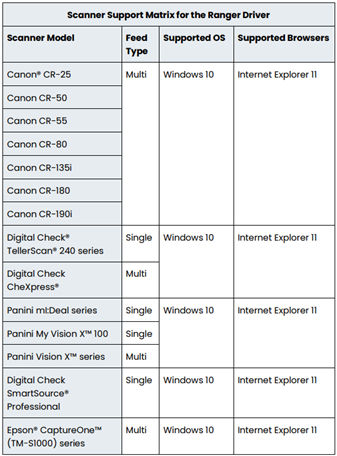
The following scanners are compatible with KeyPoint’s RDCD system.

Scanning Checks for Deposit

  • U.S. dollar checks payable to your business
  • Personal checks, business checks, money orders, cashier’s checks
  • No third-party or foreign checks
  • Load your checks, all facing the same direction.
  • Remove rubber bands or clips.
  • Align checks before scanning.

Yes. Endorse with: “For deposit only, KPCU account #______” or as otherwise instructed.

Active KeyPoint Business deposit accounts.

Check Retention

  • Store securely for 60–90 days.
  • Do not destroy until deposit is verified via online banking or statement.
  • Use a shredder or secure method for destruction.
  • View up to 6 months of history in the RDCD portal.
  • For older checks, visit a branch or contact Member Services (fees may apply).
  • You may request a copy of scanned checks older than 6 months by submitting a request through online banking under Secure Forms.

Security & Compliance

Yes. It uses encryption and secure authentication. Limit access to authorized personnel only.

Most U.S. checks are accepted. Some items (e.g., foreign checks, certain money orders) may require in-person deposit.

You’ll be notified if a check is rejected.

Troubleshooting & Support

No. RDCD is only for business accounts.

  • Ensure the scanner is connected and clean.
  • Restart your device.
  • Contact Scanner Support: (866) 219-4321, Option 1 if issues persist.


We have provided some documentation from the system provider to help you troubleshoot.

Resources to help you get down to business
Business Online Banking
Tools to make managing your money easier
Fraud Prevention
Find out how to avoid common scams
Financial Calculators
Run the numbers on spending and saving
News
Check out the latest financial news

1Mobile carrier rates may apply.